
Go from prompt to data with Claude and XCL
In one conversation and six plain-language prompts, Claude created a demo company brand, built a supervisor safety checklist, and set both up in XCL through the XCL connector, ready to track learner-level data. No code was written manually, and no LMS was involved.
Harborfold Logistics is a fictional company created for this demo. To keep it fast, Claude stood in for work that people do in a real project. Those points are called out below.
The demo
Watch it in action
The people
Where people lead in a real project
Claude and XCL speed up the build. People still own the decisions that need judgment, context, and lived experience.
- Analyze the needInstructional designers work with the business to find the real performance problem and plan the checklist’s requirements: which steps matter, what counts as a pass, and what data the organization needs.
- Create the brandDesigners create the company’s brand identity and load it into the design system, so every build uses approved colors, type, and logos.
- Test with real usersSupervisors, QA, and people who use assistive technology, such as screen readers, test the checklist. Automated checks catch some issues; people catch the rest.
- Approve and publishThe organization reviews the content and the data it collects, then decides when to publish it to the workforce.
How it worked
The six prompts
-
Step 1 Brand
Sarah’s prompt
“Can you make me a fake company name and logo so I can mock up a little brand identity in the settings in XCL?”
What Claude did
Created Harborfold Logistics: a logo for light and dark backgrounds, an icon, and a color palette checked for WCAG AA contrast.
In a real project: A brand designer creates the company’s identity, and the team loads it into its design system. Claude then applies it as supplied instead of inventing one.
-
Step 2 Brand Template
Sarah’s prompt
“Okay, now you should be able to connect to XCL and set up the brand template.”
What Claude did
Created the Harborfold Logistics Brand Template in XCL: navy background, a “Start training” button, and sign-in fields for Employee ID, first name, and last name.
In a real project: An administrator reviews the Brand Template settings, including which sign-in fields the organization uses to identify its people.
-
Step 3 Checklist
Sarah’s prompt
“Create a simple safety checklist… previously used on paper by a supervisor… load it to [XCL] using xAPI and track what the supervisor fills out, including the person’s name… [and] an employee ID.”
What Claude did
Built a forklift pre-use safety observation checklist with 10 steps as an xAPI package, then tested it in a browser and with automated accessibility checks.
In a real project: An instructional designer works with safety leads and supervisors to analyze the business need and define the checklist’s steps, rules, and data requirements before anything is built.
-
Step 4 Refine
Sarah’s prompt
“Fix the field so they’re all aligned properly… when the answer is failed… report the comments… as response information.”
What Claude did
Aligned the form fields and sent each failed step’s comment as the xAPI response.
In a real project: Supervisors try the checklist on the floor, and QA tests it, including with people who use assistive technology such as screen readers. Their feedback drives refinements like these.
-
Step 5 Publish
Sarah’s prompt
“Go ahead and send it to XCL and create a link.”
What Claude did
Drafted the title, description, and keywords, then asked which Brand Template to use and whether to publish.
-
Step 6 Confirm
Sarah’s choice
Chose the Harborfold Logistics Brand Template and “Leave unpublished.”
What Claude did
Created the unpublished Learning Link in XCL and provided a secure page for the file upload, ready to preview.
In a real project: The organization reviews the result and decides when it’s ready to publish to its workforce.
The result
What it produced

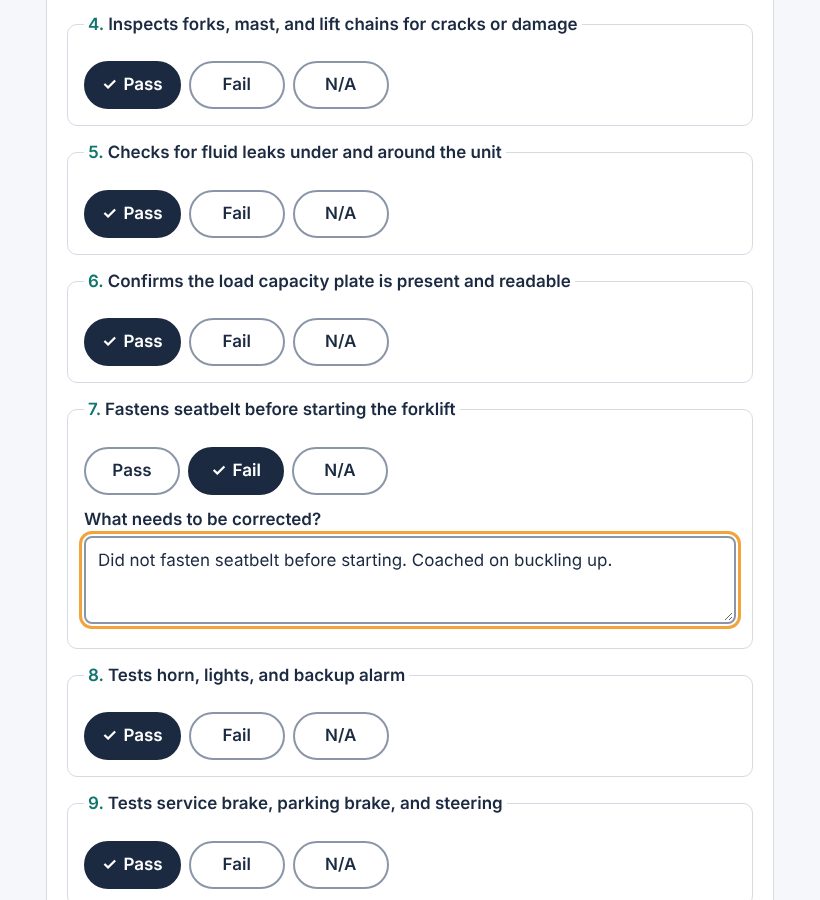
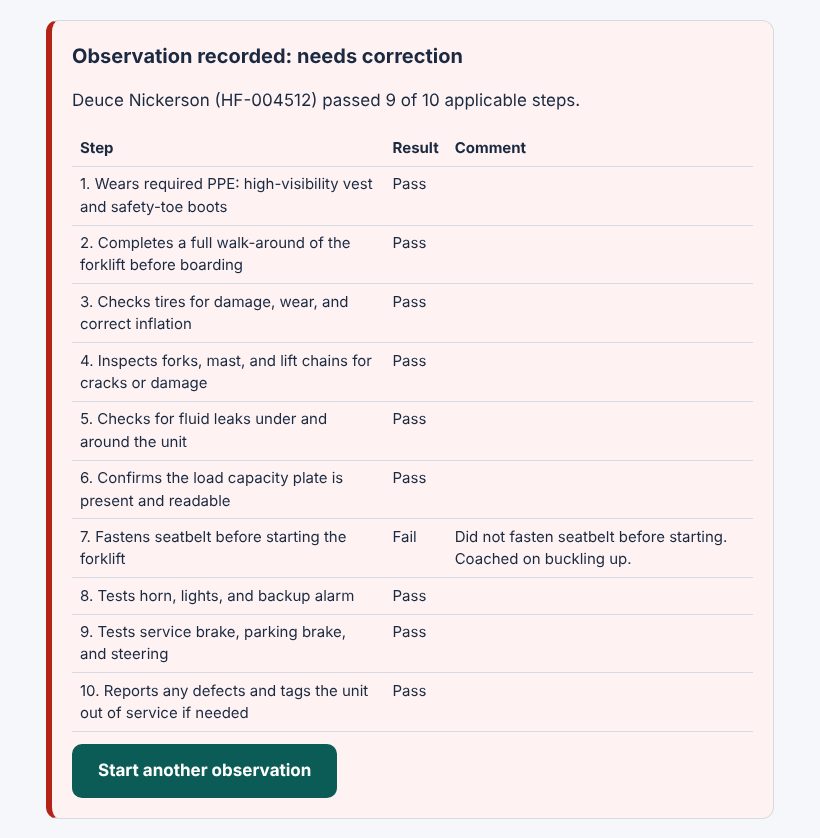
The data
What XCL captures
The supervisor opens the checklist from a Learning Link or QR code and signs in with the Harborfold Brand Template. Each submitted observation sends xAPI data to XCL:
- The employee as the learnerIdentified by name and employee ID, so each person builds their own record.
- The supervisor as the observerRecorded with every result.
- A result for each stepPass, Fail, or N/A, with the supervisor’s correction comment for any failed step.
- An overall resultPassed only if no step failed, plus a score, the work area, and the forklift unit.
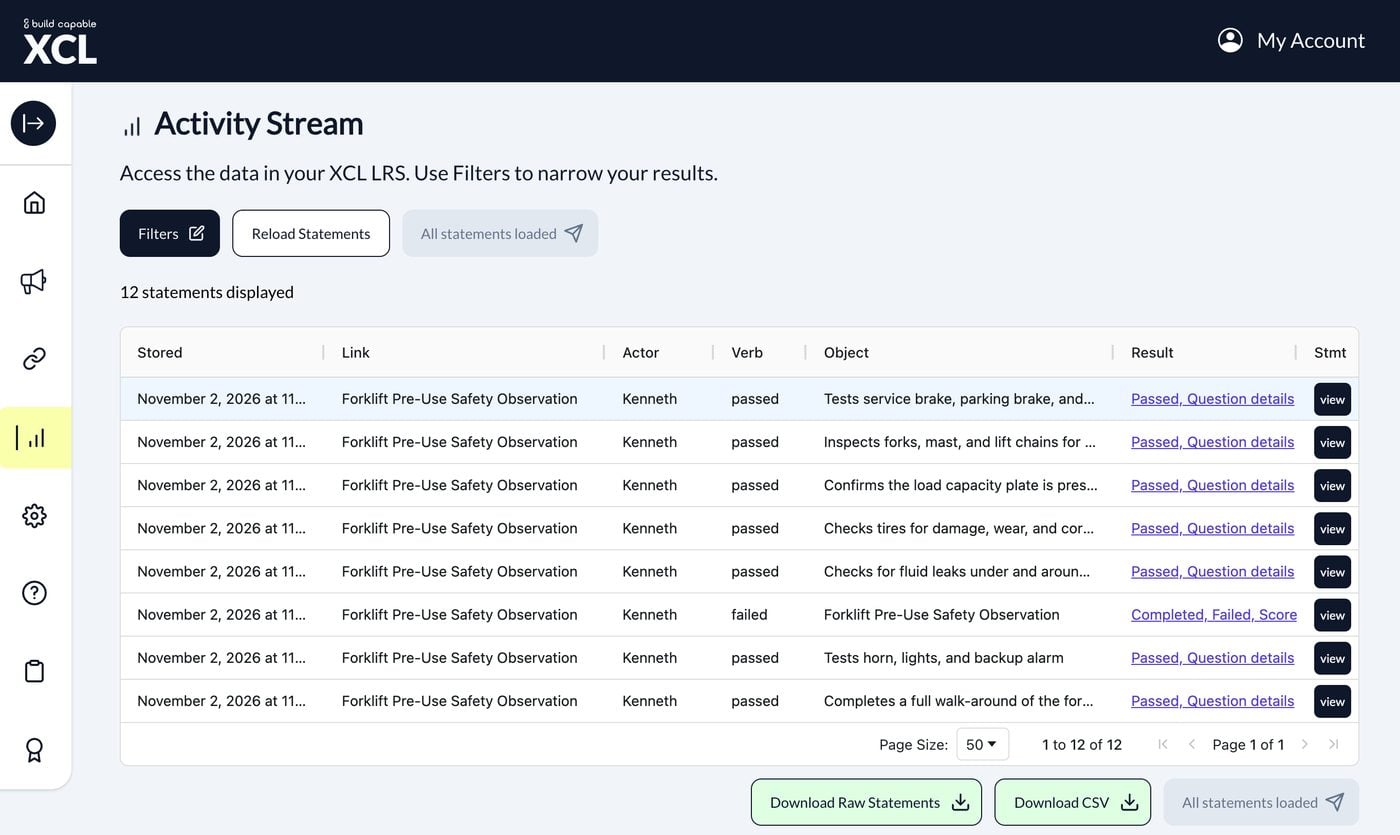
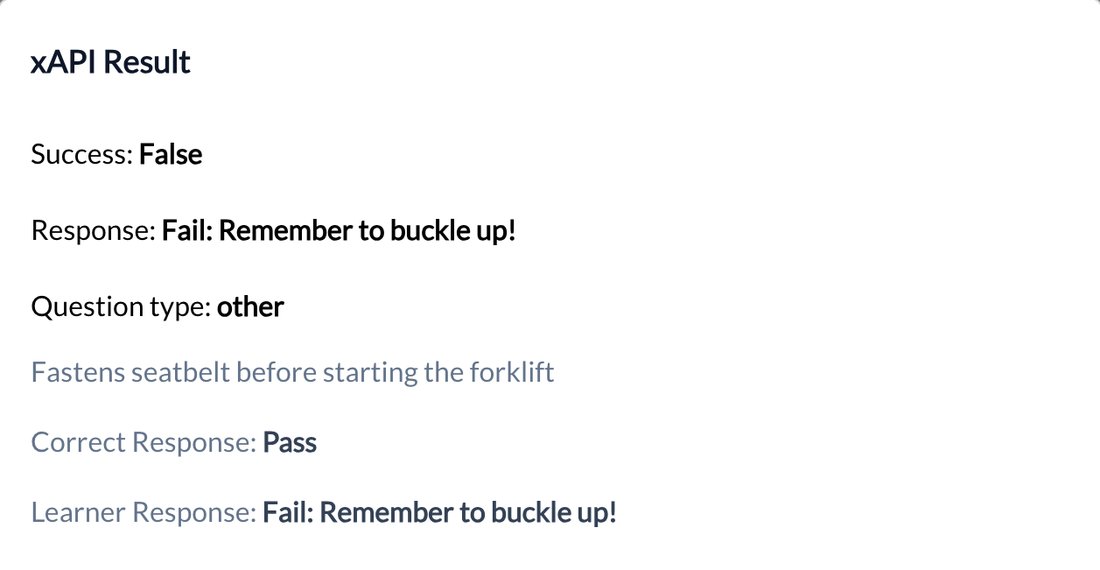
Because a supervisor observes many employees, the records add up. Here, two different employees missed the same seatbelt step. Across a team or a site, XCL’s data can reveal trends like this, so safety leaders know where to focus coaching.
Try Build Capable XCL
What will you create?
Use XCL with the MCP connection to your AI assistant – free for 14 days.